Invite your team and manage roles
Last updated: August 10, 2026
Use this article when you need to invite teammates, choose roles, or fix an access issue for someone in your Cysmiq workspace.
What to check first
- You need the Owner role to invite members and manage workspace access.
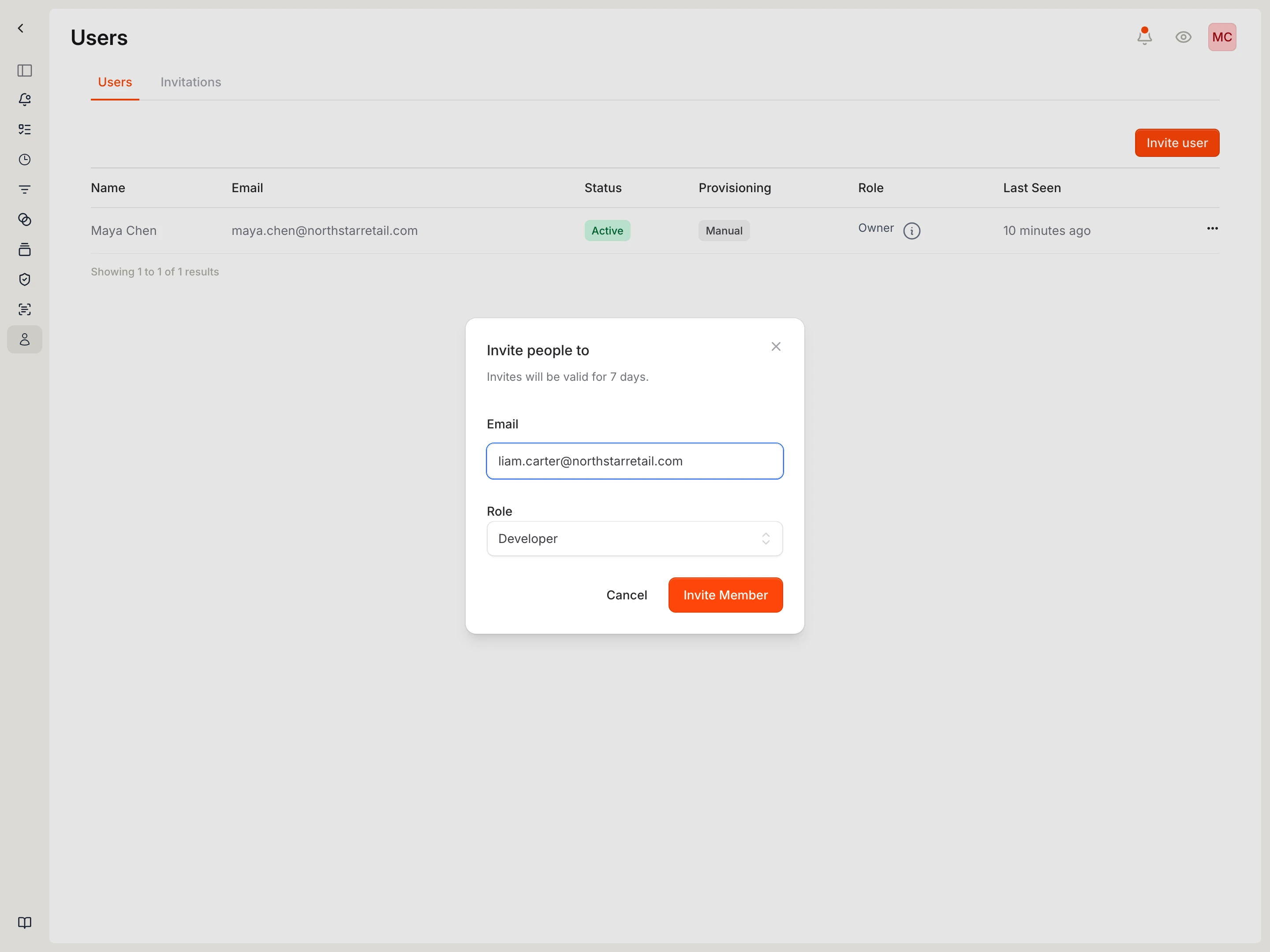
- Open Members or Settings, then Members.
- Use the Users tab for current members and the Invitations tab for pending invitations.
Roles
- Owner: full workspace access, including billing, members, integrations, and workspace settings.
- Admin: manages repositories, vulnerabilities, and reports, but cannot manage members or billing.
- Security Engineer: focused on vulnerability management, scanning, and security operations.
- Developer: base role that can inherit repository-level access from the connected VCS.
- Reporting: read-only access to dashboards and reports.
Common member tasks
- Invite: select Invite user, enter an email address, choose a role, and select Invite Member.
- Pending invitation: invitations are valid for 7 days and can be resent or cancelled from the Invitations tab.
- Change role: update the role dropdown on a member row. The permission change takes effect on the member's next page load.
- Suspend or remove: use the member row actions menu to revoke access temporarily or remove the member from the workspace.
Canonical docs
For the maintained walkthrough, see Invite your team, Manage members, and Users and access.
Contact support if
- An invitation email does not arrive after resend.
- A user cannot access the workspace after accepting an invitation.
- A role change does not update the user's access after they reload Cysmiq.
- You cannot suspend, reactivate, remove, or change a member.